A Temporal connection stores an endpoint, namespace, and API key that installations can reference for Temporal autoscaling.

Configure the connection

1

Prepare Temporal Cloud access

In Temporal Cloud, find the namespace ID and endpoint for the namespace your workers use. Create an API key whose owner has access to that namespace. API keys inherit their owner’s permissions; see Temporal’s permissions reference.
2

Add the account in Ryvn

Open Settings > Connections > Temporal and click Add Account.Click Create Integration.
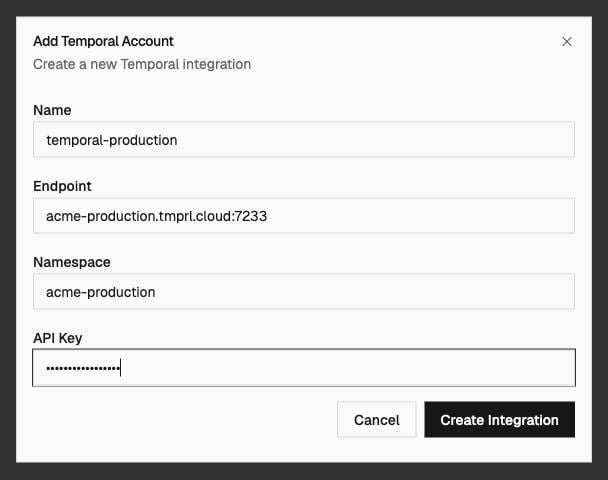
Temporal account form with an example endpoint, namespace, and masked API key
3

Reference it from an installation

Select the connection when configuring Temporal autoscaling and enter the worker task queue. In installation YAML, reference the connection by name:
The trigger inherits the connection’s endpoint, namespace, and API key. Explicit endpoint or namespace values on the trigger override the connection defaults.

Rotate credentials

Use Edit on the account to replace its API key. Leave the key blank to keep the existing one. Verify autoscaling on a consuming installation before revoking the old key in Temporal Cloud. The CLI does not currently provide a connection-update command; rotate the API key in the dashboard. If autoscaling cannot reach Temporal, check the endpoint and port, namespace ID, API key permissions, and network access from the environment running the scaler. Also confirm the configured task queue matches the one used by your workers. Before deleting an account, update installations whose autoscaling configuration references it.