
Each connection selects one Google Cloud project. You can then import variable groups from that project, optionally filtering secrets by labels.
Before you begin
You need permission to manage integrations in Ryvn and to update IAM policy in the Google Cloud project containing your secrets. With workload identity federation you also need permission to create workload identity pools in that project, such as the IAM Workload Identity Pool Admin role,roles/iam.workloadIdentityPoolAdmin.
With workload identity federation, have the project’s project number ready. Google’s token exchange names the workload identity pool by number. Find it on the project’s dashboard, or run:
Configure the connection
1
Add the project
- Dashboard
- CLI
Open Settings > Connections > GCP Secret Manager and click Add Connection. Enter a connection name, such as 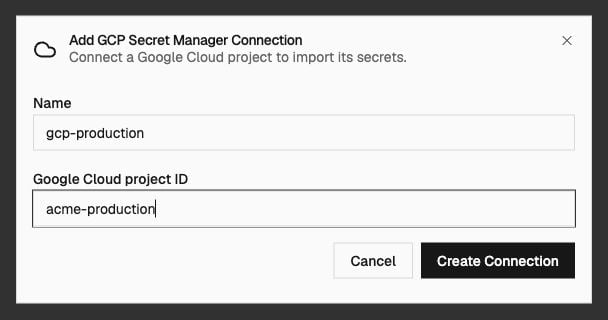
gcp-production, and the Google Cloud project ID containing your secrets. Use the project ID, not its display name.If your hub uses workload identity federation, the form also asks for the Google Cloud project number.Click Create Connection.2
Grant access to Ryvn
- Dashboard
- CLI
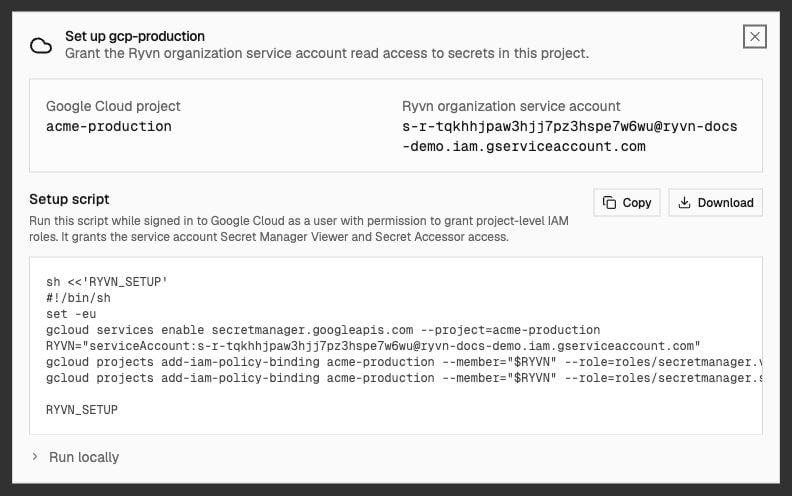
Open the connection’s Setup instructions to get the generated script.
- Enables the IAM, Security Token Service, and Secret Manager APIs.
- Checks that the project number matches the connection, and stops if it doesn’t.
- Creates the workload identity pool
ryvn-secrets-pooland its AWS providerryvn-secrets-providerif they are missing. The provider trusts your Ryvn hub’s AWS account, and its condition admits only your organization’s role,ORG_ID-secret-manager. If the provider already exists for another Ryvn organization, the script adds your role to its condition instead of replacing it. It stops if the provider trusts a different AWS account. - Grants the roles below to your organization’s role,
principalSet://iam.googleapis.com/projects/PROJECT_NUMBER/locations/global/workloadIdentityPools/ryvn-secrets-pool/attribute.aws_role/arn:aws:sts::HUB_ACCOUNT_ID:assumed-role/ORG_ID-secret-manager. No service account is created in your project.
These grants let Ryvn read secrets throughout the project. Variable group label filters select what to import; they do not narrow Ryvn’s IAM access. See Google Cloud’s access control guidance for the role definitions.
3
Test access
- Dashboard
- CLI
Return to the connection and click Test.
4
Import secrets
Follow the Dashboard or CLI instructions to import a GCP variable group. Choose optional label filters, the destination Ryvn environment, and a group name.See GCP import behavior for key naming, version selection, label filters, and sync warnings.
Maintain the connection
Use Edit to change the connection’s project before it is in use. Ryvn blocks changing the project ID or project number, or deleting the connection, while imported groups reference it. To move to another project, create a new connection and imported groups, then update consuming installations. To delete an unused connection from the CLI:ryvn-secrets-provider condition, or delete the ryvn-secrets-pool pool if nothing else uses it.
Troubleshooting
If setup cannot load or GCP Secret Manager is unavailable, contact your hub administrator. If the connection test or sync fails, check the project ID, the Secret Manager API, and both IAM roles for the exact service account or federated principal shown in Setup. Allow IAM changes to propagate before retrying. For workload identity federation, the test names the problem:- No active workload identity pool provider: run the setup script, and check the connection’s project number.
- The provider does not trust this Ryvn organization: rerun the setup script so it adds your organization’s role to the provider’s condition.
- Google rejected the hub’s AWS session: the provider may trust another AWS account. Rerun the setup script; it stops and names the account if the provider was created for a different Ryvn hub.
- The hub could not assume your organization’s AWS role: the problem is on the hub, not in your project. Contact your hub administrator or Ryvn support.