
Rollback
Rollback restores your installation to the exact state it was in before the last deployment. This includes the previous version, configuration, environment variables, and secrets that were active at that time.1
Navigate to installation
Go to Environments > select your environment > click on the installation
2
Open Activity tab
Navigate to the Activity tab
3
Initiate rollback
Find a successful deployment and click Rollback next to it, then confirm
Only successful deployments can be rolled back to. Failed deployments won’t appear as rollback options.
Force Deploy
Force Deploy lets you deploy any available version to your installation, regardless of release channels or promotion rules.1
Navigate to installation
Go to Environments > select your environment > click on the installation
2
Open Force Deploy
Click Force Deploy in the installation header
3
Select version
Choose the version you want to deploy and optionally provide a reason
4
Confirm
Click Deploy to initiate the deployment
Force deploy uses the latest configuration and current secrets, combined with the build assets from the selected version.
Automatic change protection
After performing a rollback or force deploy, Ryvn automatically blocks all automatic changes to your installation. This prevents promotions, config sync, and other automated updates from overwriting your manual deployment. You’ll see a “Changes Blocked” indicator in the installation header: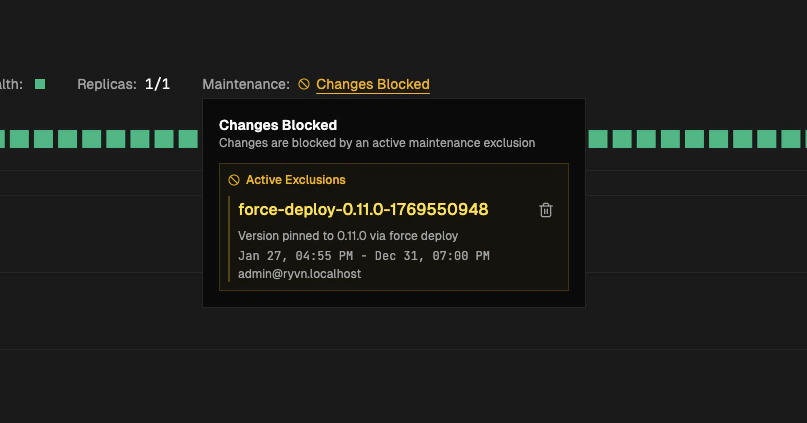
- Click on the Changes Blocked status
- Find the active exclusion in the popup
- Click the trash icon to remove it
- Confirm the removal
Additional notes
- After removing protection: If a newer version is available on your release channel or configuration changes were made while protection was active, those will apply immediately. However, if your installation is on a higher version than the release channel, it will not auto-downgrade.
- Registry deployments: If the image from a previous deployment is no longer available in your registry, the rollback will fail.