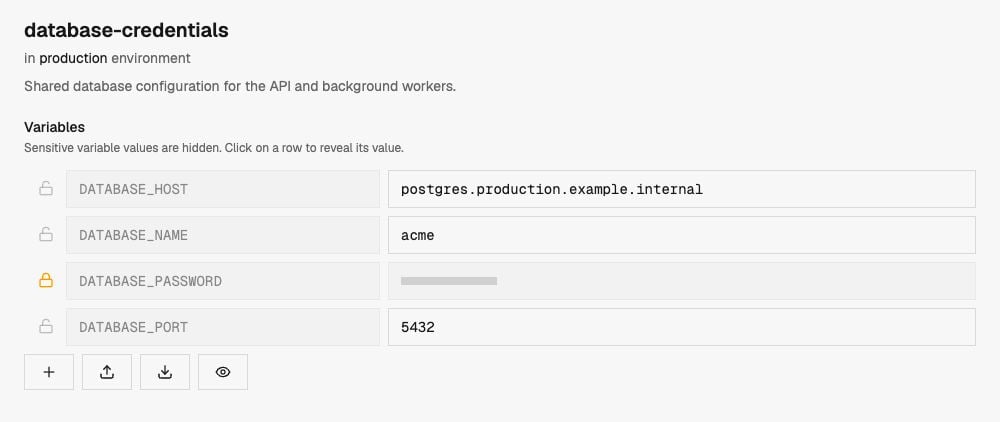
database-credentials in staging can point to a staging database while the group in production holds production credentials.
-e selects the Ryvn environment.
Create a variable group
Group names must start with a letter and contain only letters, numbers, hyphens, and underscores. Keys must start with a letter or underscore and contain only letters, numbers, underscores, hyphens, and dots. For environment variables, preferUPPERCASE_WITH_UNDERSCORES and use names your service reads, such as DATABASE_URL and DATABASE_POOL_SIZE.
- Dashboard
- CLI
1
Choose an environment and name
Open Variables from the sidebar and click Create. Select the target environment and give the group a name, such as
database-credentials.2
Add variables
Add key-value pairs.Toggle the lock icon for sensitive values such as passwords and API keys. A group can contain both sensitive and non-sensitive variables.
3
Save the group
Create the group, then link it to an installation in the same environment. Creating a group alone does not attach it to any installations.
Use a group in an installation
- Dashboard
- CLI
In an installation’s Environment Variables section, click the folder-key icon labeled Link variable group and select a group from that environment. Save the installation settings to apply the change.
spec.variableGroups:
Update and compare values
- Dashboard
- CLI
Open a group to add, edit, or remove variables. Review the diff before confirming the update. Changes create revisions so you can inspect the group’s history.
Sync from external sources
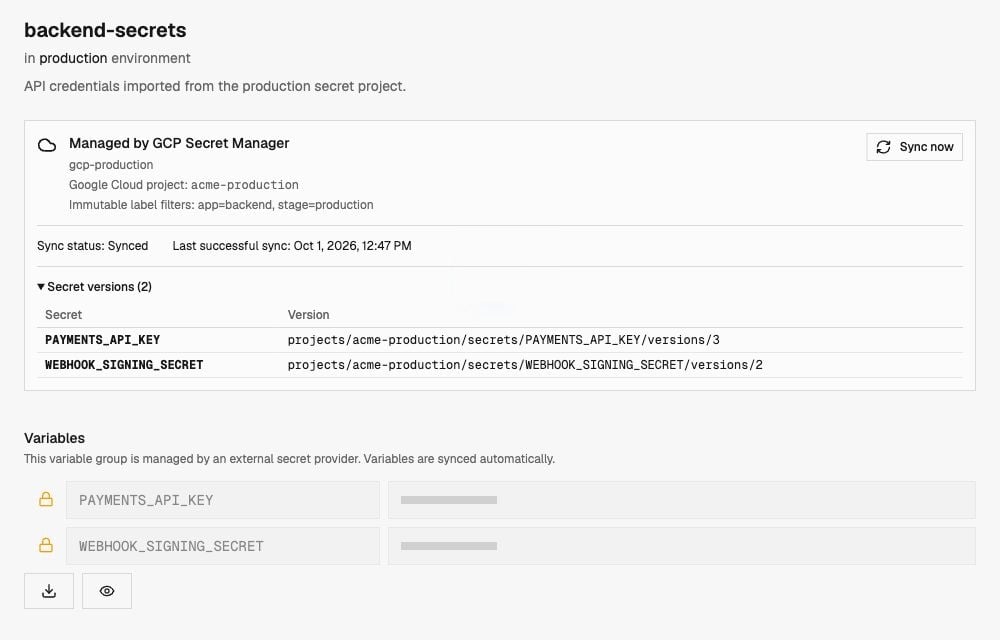
Ryvn can populate a variable group from Infisical or GCP Secret Manager. A connection stores the provider configuration at the organization level. Each imported group selects a source and a destination Ryvn environment. Imported groups are managed by the external provider. Edit secrets at the source; their values are read-only in Ryvn. Imported values are marked sensitive.1
Configure a connection
Follow the Infisical setup guide or GCP Secret Manager setup guide, then test the connection.
2
Choose the source
Choose the connection and source settings using the Dashboard or CLI instructions for your provider below.
3
Choose the destination
Give the group a name and select its destination Ryvn environment. The initial sync runs asynchronously.
4
Wait for the first sync
Check the group in the dashboard or with
ryvn describe variable-group NAME -e ENVIRONMENT and wait for a successful sync before using its values. Then link it to installations in the destination environment just like a locally managed group.Infisical
- Dashboard
- CLI
Select the connection in Variables > Import, then choose the source project, environment, and secret path. Enable Include imported secrets if needed. Select the destination Ryvn environment, name the group, and click Import Variable Group.
GCP Secret Manager
- Dashboard
- CLI
Select the connection in Variables > Import and add any label filters. Select the destination Ryvn environment, name the group, and click Import Variable Group.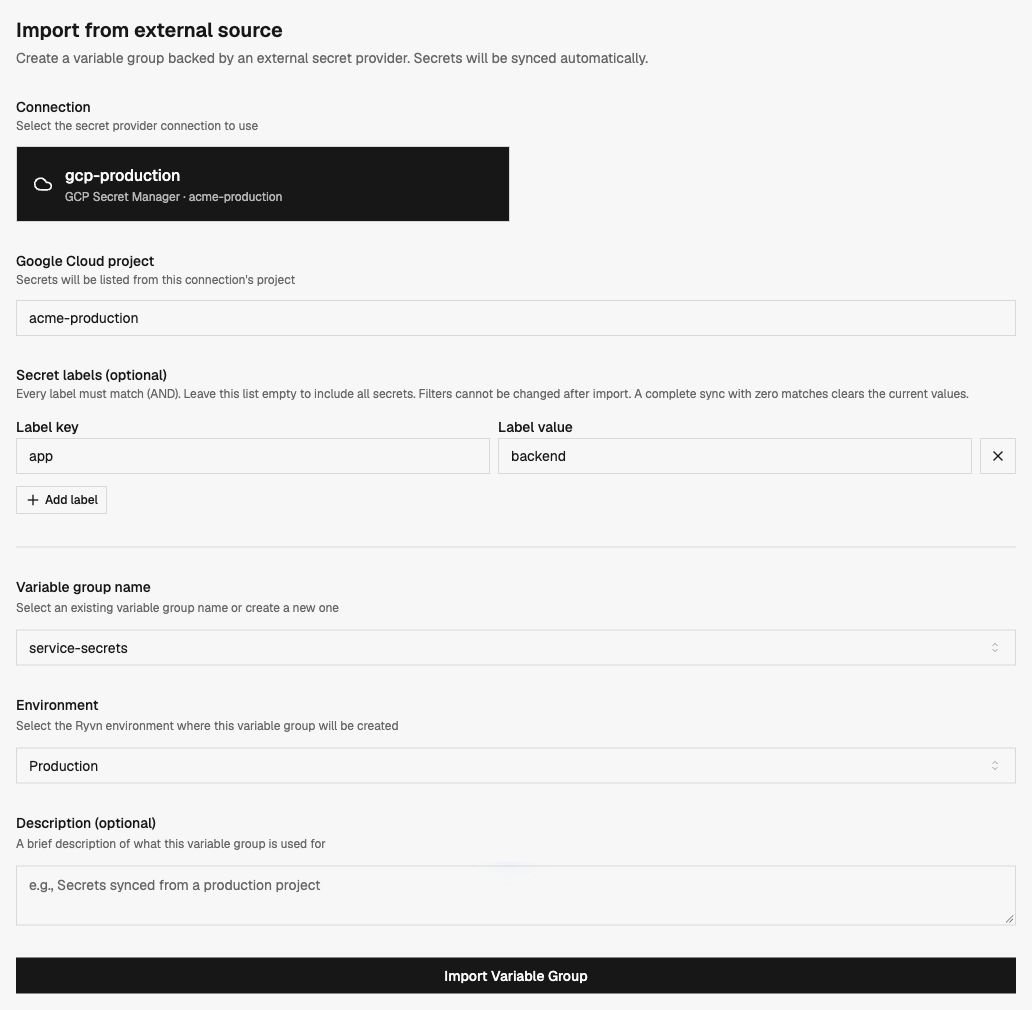
app=api and stage=production.
- Every label must match. Multiple filters use AND logic.
- No filters means all secrets in the connection’s project.
- A blank label value matches an empty value; it is not a wildcard.
- Filters cannot be changed after import. Create a new imported group if you need a different selection.
DATABASE_URL; IDs starting with a number are not valid variable keys and are skipped with a warning. Hyphens are allowed in group keys, but use underscores for compatibility with applications that expect conventional environment variable names.
Ryvn reads the latest version. If that version is disabled or destroyed, it looks for the newest enabled version. Payloads must be UTF-8 text; binary values and secrets without an enabled version are skipped with warnings. The group’s Secret versions section shows which versions were imported.
Sync status and failures
Ryvn syncs imported groups periodically. Imports and manual sync requests run asynchronously.- Dashboard
- CLI
Click Sync now on the group to request an immediate sync. The group shows its status, last successful sync, errors, and warnings.